
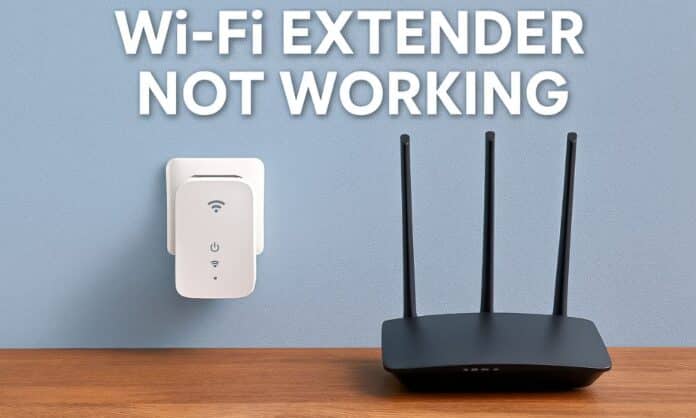

If your router is fine, but WiFi extender not working is still your reality. You’re usually dealing with one of two boring problems: bad placement (the extender can’t “hear” the router well enough), or bad linkage (your phone connects to the extender Wi‑Fi, but the extender isn’t truly connected to the router for the internet).
This guide is written for home users with both common extender types: small wall‑plug units and larger desktop extenders with antennas.
WiFi extender not working: 60‑second sanity check
Even when you’re sure the router is fine, this quick check keeps you from troubleshooting ghosts.
- Connect a phone to the main router Wi‑Fi and load a website (this confirms “router internet is OK”).
- Stand next to the extender and connect to its Wi‑Fi (this removes the distance from the test).
- Look at the extender’s router‑link/signal indicator (NETGEAR explicitly tells users to use the Router Link LED to determine whether placement is good).
If your router works but the extender doesn’t, start with placement.
WiFi extender not working: Quick Fixes
1) Placement first (WiFi extender placement) — works for wall‑plug and desktop extenders
The extender must be within range of the router and, ideally, halfway between the router and the weak Wi-Fi area—NETGEAR states this plainly, and TP‑Link uses the same “halfway” guidance.
For wall‑plug extenders (small units)
- Plug it into a socket halfway between your router and the dead zone, not inside the dead zone.
- Check the router‑link indicator and move it closer to the router if the link is poor (NETGEAR’s Router Link LED guidance is specifically meant for this).
- If you must choose, it’s better to be slightly closer to the router than to the dead zone, because the extender can’t extend what it can’t reliably receive.
For desktop extenders with antennas
- Place it midway between the router and the weak area (Linksys explicitly recommends placing the extender midway between the router and the Wi-Fi-free area).
- Keep antennas upright if your model uses external antennas (Linksys user guide notes antenna positioning and midway placement during setup).
- If the extender shows a weak connection, relocate it closer to the router (Linksys troubleshooting manuals commonly suggest moving closer when the link is weak).
Why placement matters: NETGEAR explicitly says the extender relies on the router for internet access and loses it if it’s out of range or the router’s signal can’t reach it.
2) Extender connected but no internet (don’t skip this section)
TP‑Link’s official troubleshooting for “connected but no network access” focuses on verifying the extender’s status via LEDs and the router‑to‑extender connection.
Use this home-user sequence (no networking jargon):
- Connect to the Wi‑Fi extender and try loading a website.
- Open the extender’s status page (app or browser) and look for a “connected to router” / “router link” indicator (TP‑Link explicitly tells you to check status icons and the router‑extender connection).
- If the extender shows it’s not connected to the router: re-run setup (WPS or web/app) because the extender isn’t actually providing an internet path yet.
- If the extender shows as connected but you still have no internet, follow your vendor’s “no network access” flow (TP‑Link may require checking extender IP/gateway/DHCP settings depending on setup).
Practical tip: many extenders create a separate network name like “_EXT,” and How‑To Geek notes this can help you tell whether you’re on the extender or still on the router Wi‑Fi.
3) WPS extender setup (when pairing fails)
Wi‑Fi Alliance explains that WPS has push‑button and PIN methods, and the push‑button method runs a short setup window (commonly around two minutes).
Do WPS in a clean, repeatable way:
- Press WPS on the router first.
- Within the setup window, press WPS on the extender.
- Wait until the extender confirms a successful link (the router‑link light stabilizes/indicates a good link, as NETGEAR describes).
- If WPS fails twice, switch to web/app setup (vendors document both paths because WPS can fail due to timing/distance).
Safety note: Wi‑Fi Alliance warns that during the push‑button setup window, unintended devices could join if they’re in range.
4) WiFi extender slow speed (what’s fixable at home)
A common surprise: after the extender “works,” speed still feels worse than near the router.
- How‑To Geek explains that Wi‑Fi repeaters/extenders that relay traffic over Wi‑Fi can effectively reduce bandwidth because they must receive and retransmit over the same wireless medium.
- A long‑standing networking explanation on Super User also notes that Wi‑Fi extenders can top out at a fraction of the direct speed due to shared-medium and relay behavior.
Home fixes that actually help:
- Move the extender closer to the router until the router‑link indicator improves (NETGEAR explicitly says to move it closer if needed and to use the Router Link LED as a guide).
- If your extender supports Ethernet/access point mode, wiring it can reduce the worst “wireless relay” penalty (Linksys extenders commonly include Ethernet ports and document wired usage).
Home expectations (to avoid disappointment):
- If the extender is at the edge of router range, performance will be unstable and slow; NETGEAR calls borderline placement a common cause of repeated password prompts and unreliable behavior.
5) 5GHz extender not working (but 2.4GHz works)
TP‑Link’s “no network access” troubleshooting specifically mentions checking the router’s 5GHz channel and avoiding DFS channels in some cases.
Try this (home-user safe steps):
- In the extender status page, check whether it’s connected to both bands (if your extender is dual‑band).
- If 5GHz won’t connect, temporarily set your router’s 5GHz channel to a non‑DFS channel and try setting up again (TP‑Link explicitly suggests this troubleshooting step).
6) Factory reset WiFi extender (when the setup is “poisoned”)
If you’ve moved it or paired it and it still behaves strangely, a reset is often faster than endless tweaking.
- TP‑Link documents “hard reset to factory defaults” by pressing and holding the reset button (method varies by model, but the concept is consistent).
- Linksys user guides also describe resetting to factory defaults by holding the reset button for a specified time (model-specific).
Reset workflow (works for both wall‑plug and desktop models):
- Reset the extender to factory defaults.
- Set it up near the router first (a strong signal makes setup succeed more reliably).
- Move it to the halfway placement and re-check router‑link quality.
7) Reconfigure the WiFi extender after router changes (very common)
If you ever replaced your router or changed Wi‑Fi name/password, your extender can “look alive” but stop working until reconfigured.
- NETGEAR explicitly states that you must reconfigure the extender if you replace your router/gateway device (via WPS or the web GUI).
Symptoms that point to reconfigure (not reboot):
- The extender network shows up, but no internet through it.
- The issue started right after the router changes.
8) “I can’t open the extender setup page.”
This is usually because you’re connected to the router Wi‑Fi instead of the extender Wi‑Fi.
- NETGEAR provides a troubleshooting hub for extender access issues (including common mywifiext.net problems).
- Linksys support also starts troubleshooting with simple steps, like power cycling and checking whether the network is detected.
Home steps:
- Connect your phone to the extender Wi‑Fi first, then try the setup page again.
- Power cycle the extender (unplug, wait 30 seconds, then plug in), which Linksys recommends as a standard first-line home fix.
- If it still fails, perform a factory reset and start fresh.
9) Firmware updates (only after the extender is stable)
Firmware updates can help with bugs, but they won’t fix a badly placed extender.
- Linksys includes firmware checks as part of general home Wi‑Fi troubleshooting.
- NETGEAR centralizes troubleshooting resources for extenders and points to firmware updates in support workflows.
Safe approach:
- First, get a stable placement and a good router link.
- Then update firmware using your brand’s official support page for the model.
Realistic Expectations & Common Limitations
- LED behavior, setup pages, and reset timing are model-specific, and both Linksys and NETGEAR show how much troubleshooting depends on exact device behavior.
- Some speed drops are normal for Wi‑Fi relays; How‑To Geek and Super User both describe why extenders can reduce throughput due to relay/airtime sharing.
- WPS is convenient but has a short pairing window, and Wi‑Fi Alliance warns about unintended joins during that window.
Final remarks
If your router is OK and the only problem is the WiFi extender not working, the fastest fix is almost always: move it halfway, check the router‑link indicator, and re-run setup if the extender isn’t truly connected to the router.
If coverage improves but speed still feels disappointing, that’s often a design limitation of wireless repeating, not something you “misconfigured.”
Check out: Best Wi-Fi Extenders to Get Faster Internet for Your Home