


As a popular social media platform and a pioneer in fleeting message platforms, Snapchat recently launched a cutting-edge AI feature called ‘My AI’. While many users appreciate and enjoy the personalized touch this AI adds to their experience, some still feel invasive or even find it creepy. That’s why this article is going to explore the details of Snapchat’s AI and introduce several feasible methods you can use to remove Snapchat AI on your device.
Part 1. What is Snapchat AI?
Snapchat’s AI, referred to as “My AI,” is an advanced feature designed to enhance user engagement by tailoring the app’s content to individual preferences. It analyzes user behavior, including the type of stories viewed and engagement patterns. Through such observation, it curates a personalized feed. The goal is to make the Snapchat experience more enjoyable and relevant. Below are more key features you can find in Snapchat AI.
Filters and Lenses: Snapchat’s popular face filters and AR lenses rely on computer vision and machine learning algorithms to recognize and manipulate facial features in real time.
Object Recognition: Snapchat uses AI to recognize objects in photos and videos, enabling users to apply relevant filters, stickers, or effects based on the content of their snaps.
Content Discovery: The platform uses machine learning to analyze user behavior and preferences to offer personalized content recommendations. This helps in curating the Discover section and suggesting friends to follow.
Snap Map: Snapchat’s Snap Map feature, which allows users to see where their friends are on a map, involves location-based AI algorithms to display real-time location updates while respecting user privacy settings. If you are a Snapchat+ user, you can also display a Bitmoji pet on the map.
Ad Targeting: Like many social media platforms, Snapchat utilizes AI for targeted advertising. It analyzes user data to deliver ads that are more relevant to individual users. The company uses millions of chatbot messages to refine its Ad business, which some users might find intrusive and disturbing.
Feedback from users has been mixed. Some appreciate the personalized touch, finding that it adds value to their Snapchat interactions. However, plenty of users have raised concerns about privacy and the potential over-reliance on AI for content curation. Besides, some have even reported the Snapchat AI to be creepy. Regardless of which team you are on, it is still reassuring to have some choices if you get the right to turn it off and on as you like. Therefore, keep reading and explore the valid solutions to learn how to remove My AI on Snapchat.
Part 2. How to Get Rid of AI on Snapchat
Before delving into the methods to remove or turn off AI on Snapchat, it’s important to note that currently, only Snapchat+ subscribers have the privilege to unpin or remove My AI. For those with this subscription, check out the first method to learn the steps.
Method 1: Turning off the AI or Unpinning it (Requires Snapchat+ Membership)
Snapchat+ subscribers can navigate to their settings and find the option to disable or unpin My AI. This simple step allows users to obtain control over their Snapchat feed, eliminating the AI-driven content suggestions.
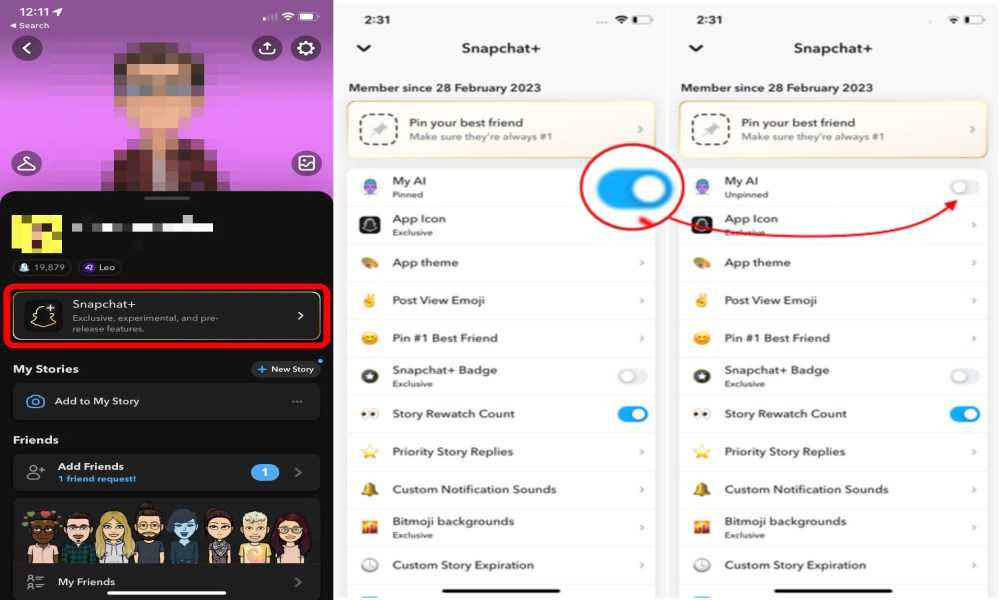
Step 1. Open Snapchat and go to your Profile. On the Profile screen, tap the Snapchat Plus banner.
Step 2. Change My AI from Pinned to Unpinned.
unpin-snapchat-ai.jpg
Method 2: Delete the Data from My AI
Another solution to get rid of My AI on Snapchat involves clearing the data associated with Snapchat AI. Every time you converse with the AI chatbot, Snapchat stores user data unless you delete it yourself.
By deleting this data, users can reset the AI’s understanding of their preferences and patterns. You can find this delete option in the Settings menu, specifically within the My AI section.
Step 1. To delete My AI data, navigate to the Profile screen in Snapchat on your phone.
Step 2. Then, scroll down to find Privacy Controls and tap on it.
Step 3. Once you are in, tap Clear Data.
Step 4. Choose Clear Conversations and My AI to delete all relevant AI data on Snapchat.
Method 3: Block My AI from Accessing Stories on Snapchat
Blocking My AI’s access to specific posts is an option for those looking for a more precise approach. This can be done by modifying the app’s privacy settings. By limiting My AI’s accessibility, users have more control over the content they see on Snapchat.
Part 3. More Snapchat Tips to Create a Cyberspace of Your Own
My AI does provide lots of fancy features and even mimics your behaviors and posts Stories that look like you’ve posted yourself. To some extent, this can be very creepy. If you want to take control over your Snapchat space, here are some tips you can take advantage of to create unique content, including joining the membership to have full control of Snapchat AI.
Tip 1. Make Creative Snapchat Stories on Your Own Instead of Using AI
For users looking to take a hands-on approach to their Snapchat experience, ArkThinker Video Converter Ultimate is a valuable tool. As a comprehensive tool, this converter offers both converting the editing features for Snapchat users to create engaging and unique Snapchat videos/Stories. Without relying on AI, you can independently learn how to trim Snapchat videos in this converter.
Moreover, since Snapchat has specific requirements for your posted videos, ArkThinker Video Converter Ultimate becomes your good companion to meet those requirements.
For example, Snapchat allows video to be MP4, MOV, and H.264 encoded. If your video clip is in another format. ArkThinker helps you change the codec and output a desirable format. Here is a quick guide on how to use this converter to convert your Snapchat video.
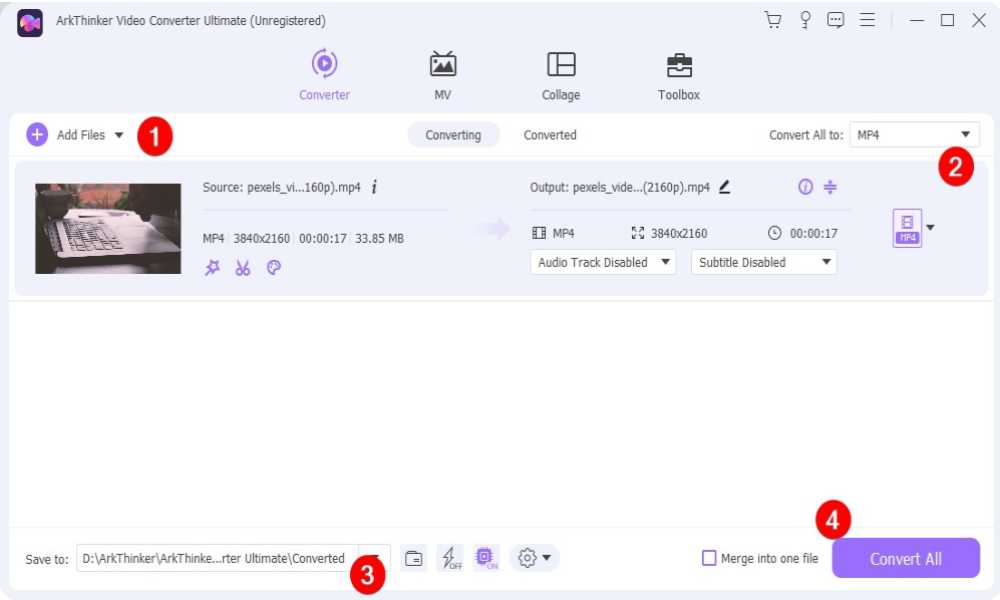
Step 1. Download and install the software from its official website.
Step 2. Launch the software and import your video clip.
Step 3. Click the Output Format drop-down option, in which you can choose an ideal format for exporting the video.
Step 4. Select where you want to export the video by clicking the Browse and Select Folder button. Next, click the Convert All button to export your video for Snapchat.
If you want to know more specific requirements for Snapchat videos, below is a detailed table.
| Video Requirements | |
| Resolution | 1080×1920px |
| Aspect Ratio | 9:16 |
| Length | 3 to 180 seconds |
| Format/Codec | MP4, or MOV, and H.264 encoded |
| File Size | 1 GB or less |
Tip 2. Subscribe to Snapchat+ to Have Full Control Over My AI
Snapchat Plus is an enhanced version of the app that offers additional features and customization options. While it comes with a price tag, the benefits may outweigh the cost for Snapchat users. Some features of Snapchat Plus include:
- Enhanced privacy settings.
- Advanced customization options for stories and profiles.
- Customize app icons.
- Early access to Snapchat’s latest features.
- Exclusive filters and lenses.
- Bitmoji background, customized notification sounds, and more.
- Unpin My AI from Snapchat.
Considering the additional functionalities Snapchat Plus brings to the table, it might be a worthwhile investment for those seeking a more customized Snapchat experience.
Conclusion
By following the tips and steps in this thorough guide, Snapchat+ subscribers and non-Snapchat+ users can regain control over their My AI on Snapchat. Apart from the detailed guide on how to get rid of My AI on Snapchat, you can also learn the tips for maintaining Snapchat cyberspace and learning features about Snapchat+. Share this post to let more people see the way and gain full control of their Snapchat AI.
Check out: How to Unpin Someone on snapchat: Android & iPhone