


Are you stuck while downloading your Google Play Apps and seeing “Download Pending”? You’ve probably been staring at that message for a while now, wondering what’s going wrong. Your WiFi’s connected, your phone has space, but the app just won’t start downloading. Frustrating, right?
I’ve been helping people troubleshoot Android issues for years, and I can tell you this is one of the most common problems people run into. The good news? It’s almost always something simple. Usually takes just a few minutes to fix once you know what you’re looking for.
What’s Really Going On With “Download Pending”?
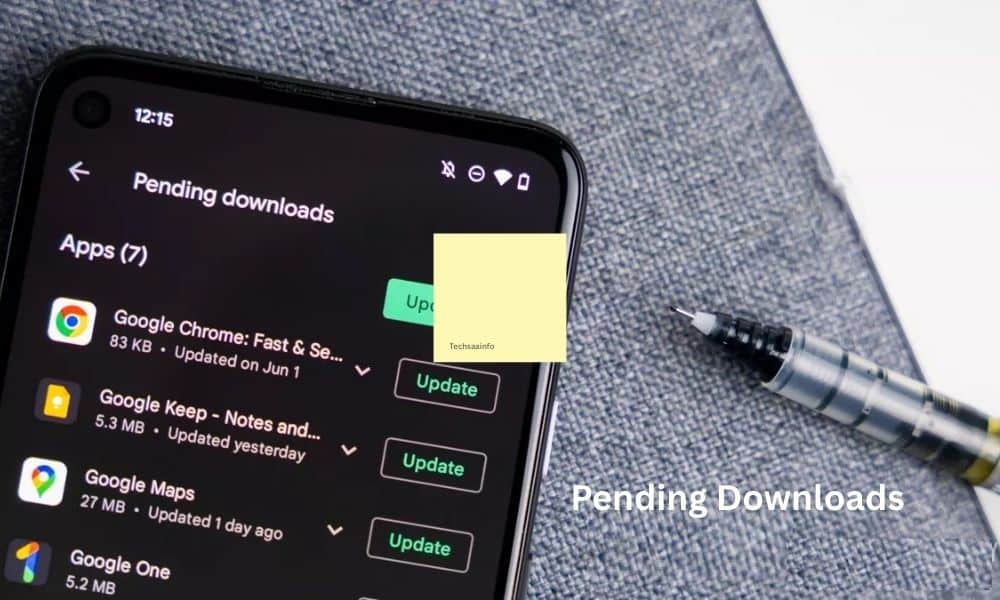
Here’s what actually happens when your Google Play Apps get stuck. Your phone downloads apps one at a time, not all at once. Think of it like a queue at a store. When you hit install, your app joins that line. If another app’s already downloading, yours waits. That’s what “Download Pending” means—your app’s in line, just waiting for its turn.
But sometimes that’s not the whole story. Your internet connection could be the real issue. Downloads need a steady, consistent connection. If your WiFi keeps dropping or your signal’s weak, the download can stall and get stuck in pending mode. Your phone basically gives up trying.
Then there’s storage space. Apps need room to install. If your phone’s storage is full, there’s literally nowhere for the new app to go. The download can’t proceed, so it just sits there pending.
And if you’re someone who likes to download multiple apps at once? Yeah, that’ll trigger it too. Your phone handles one at a time, so everything else just waits in the queue.
Let’s Get Your Google Play Apps Actually Downloading
I’m going to walk you through this step by step. Start with the first solution and work your way down. Most people find what they need pretty quickly.
Step 1: Check Your Internet Connection
This is where I always start because it’s the most common culprit. Open any browser—Chrome, Firefox, whatever you use. Try loading a website. Google, Facebook, your email, anything. Does it load pretty quickly? Then your internet’s probably fine. Takes forever to load or won’t load at all? There’s your problem.
If you’re on WiFi, move closer to your router and try again… Need more help? Check how to fix WiFi connection issues.. Sometimes you’re just too far away, and the signal gets weak. If you’re using mobile data, actually check your plan. Make sure you have data remaining. Sounds obvious, but you’d be surprised how often this is the actual issue.
Step 2: Tell the Play Store to Stop Being Picky
The Play Store has settings that control which networks it’ll use for downloading Google Play Apps. Sometimes these settings are too restrictive. Open the Play Store app. Tap your account icon in the top right corner. Go to Settings. Look for something called “Network Preference” or “App Download Preference.” You might see it set to “WiFi only” or a similar option. Change it to “download over any network” or whatever option allows both WiFi and mobile data.
This tells your Google Play Apps to download regardless of what network you’re using. Go back and try your download again. It should start moving this time.
Step 3: Download One App at a Time
Here’s something people don’t always realize. Your phone processes one app installation at a time. Period. Download five apps simultaneously, and the other four just sit there pending. They’re not broken—they’re just waiting.
Close the Play Store entirely. Swipe it away from your recent apps. Wait about ten seconds. Open it again. This time, download just one app. Let it finish completely and then start downloading the next one. Yeah, it’s slower, but your Google Play Apps will actually download instead of sitting in limbo.
Step 4: Restart Your Phone
I know this sounds like basic tech support advice, but it genuinely fixes so many problems. Your phone clears its memory, closes background processes, and basically starts fresh. Is that glitch preventing your Google Play Apps from downloading? It’s usually gone after a restart.
Hold down the power button until you see the restart option. Tap it. Let your phone power down and back up. Once it’s fully booted, try your download again.
Step 5: Check Your Storage Space
Apps need somewhere to live on your phone. If your storage is almost full, there’s nowhere for new Google Play Apps to install. The download won’t happen—it just sits pending.
Check how much free space you have. You need at least a couple of gigabytes for most apps. If you’re running low, delete some stuff. Old photos, videos you don’t watch, apps you never use. Move your photos to Google Photos or another cloud service. Clean out your Downloads folder. Get some free space and try again.
Step 6: Clear the Play Store Cache
The Play Store app accumulates junk over time—cached data, temporary files, corrupted bits. This can cause Google Play Apps to stop downloading properly.
Go to Settings. Find Apps. Look for the Google Play Store and tap on it. Find “Storage” or “App Data.” You’ll see a “Clear Cache” button. Tap it. This removes temporary files but keeps you signed in. Your account information stays, your app preferences stay. Nothing important gets deleted.
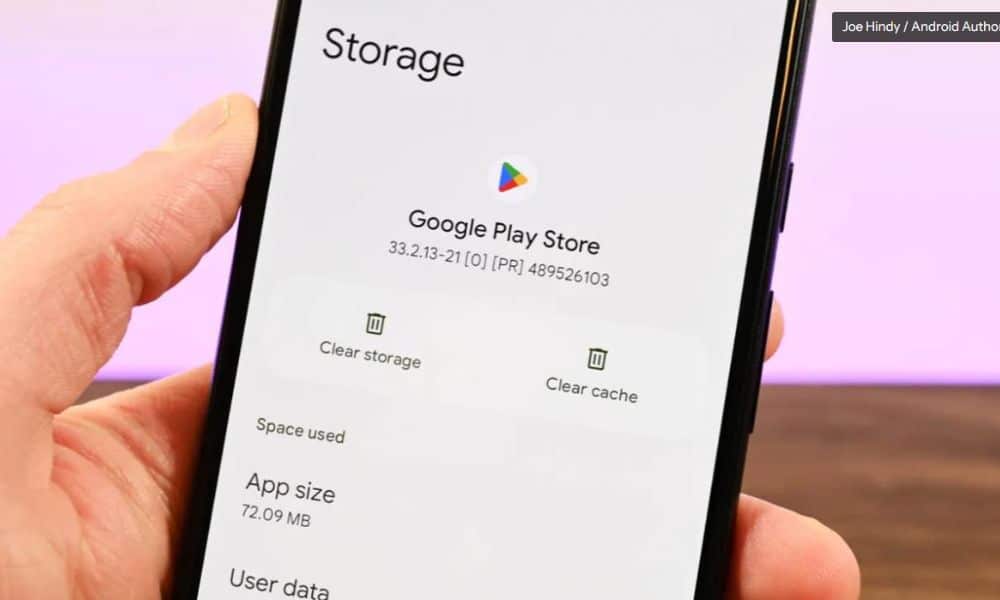
If clearing the cache doesn’t work, you can try “Clear Data.” Yeah, you’ll have to sign back in, but nothing actually disappears from your phone. Your apps stay installed. Your data stays. The Play Store just resets to a clean state. Sometimes this is what you need to get Google Play Apps downloading again.
Step 7: Download From Your Browser Instead
If you’ve tried everything and your Google Play Store still won’t download, the Play Store app might actually be broken. But you can still get your apps another way while you figure it out.
Go to play.google.com in your browser on your computer or phone. Search for the app you want. Download it directly from Google’s website. It’s slower than using the Play Store app, but it works.
Another option is downloading APK files from sites like APKPure and APKMirror—they host the actual app files you can download and install manually. But here’s the thing: you need to know about trojan apps on Google Play that can steal your data so you understand the risks of downloading from third-party sources. APKPure and APKMirror are legitimate and widely trusted, but other sites aren’t. Stick with ones you recognize.
You could also ask a friend if they have the app. They can send you the APK file through email or a file-sharing app. You install it manually on your phone. Not the fastest method, but it gets Google Play Apps onto your device when nothing else works.
The Real Talk
Look, having Google Play apps stuck on “Download Pending” is annoying. There’s no getting around that. But it’s rarely something serious. Usually, it’s just a connection hiccup, a full cache, or too many downloads at once.
Start simple. Check your internet. Restart your phone. Clear the cache. That combo fixes it about 80% of the time. Only move to the more complicated stuff if those don’t work.
You’ll get your Google Play Apps downloaded. Sometimes it just takes a bit of troubleshooting.